Documentation

LiveControl currently features 6 pages, comprising of a Clip Launcher, Mixer, Device Controller, Step Sequencer, XY Pad and Track Controller.


iPad Templates

Clip Launcher

The Clip Launcher is a standard Ableton Live session view clip launcher. It allows you to easily launch and select clips as well as control some other settings in the Live Set.

  • By default the navigation buttons will scroll in steps of 7 tracks and 7 scenes, however holding <Shift> and pressing the navigation buttons will let you move in steps of 1.
  • The Device button allows you to switch between Device and Clip view for a specific track.
  • LQ+/- allow you to change the launch quantisation options, and when <Shift> is held the record quantisation.
  • Od lets you toggle overdub and Met the metronome. Tap allows you to tap tempo.
  • Holding <Shift> and press Met or Tap allows you to adjust the tempo up or down in steps of 1bpm.
  • Holding <Shift> and pressing a clip slot will focus that clip.

Mixer

The mixer page allows control over standard Ableton mixer functions such as the volume, panning, and send volumes for each track.

Device Control

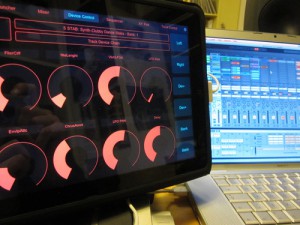
Device control gives you control over 8 parameters at a time from the currently selected device. You can navigate the selected device using <Left>, <Right>, <Dev+> and <Dev->. <Bank+/-> scrolls through the devices parameters.

Sequencer

The Seqeuencer page allows you to enter MIDI data into MIDI clips within the session view of Ableton Live.

To use the Sequencer you must first select a MIDI clip in the Session View. Hold down <Menu 2> and press <Up>, <Down>, <Left> and <Right> to highlight a MIDI clip with the Selection Ring. Once you select a MIDI clip the sequencer should update with any MIDI data currently in the clip. Launch the clip and the LED’s should follow the playing position in the current clip.

  • <Left> and <Right> scroll through the MIDI clip if it is larger than the current view
  • <Up> and <Down> move up and down the notes in the MIDI clip
  • <Zoom+/-> allows you to zoom in and out of the clip
  • Holding <Menu2> gives access to navigation of the session view using <Up>, <Down>, <Left> and <Right>. It also lets you <Fold> notes and <Start>/<Stop> the current clip

XY Pad

Track Control

Drum Pads

Keyboard

iPod Templates

Clip Launcher

Mixer

Device Control

Sequencer

XY Pad

Track Control

Drum Pads

Keyboard

  • spix

    how do i change the “Clip Launcher” layout so that the name of the clips can be displayed in 2 rows?

  • spix

    how do i change the “Clip Launcher” layout so that the name of the clips can be displayed in 2 rows?

  • http://www.kristiansharpe.com/ Kristian

    This is amazing, I’ve been having real fun with it…. !

    It would be amazing if you included a screen dedicated to ‘pads’ so you can play beats and sounds…

    Or perhaps a ‘standard’ 9 pad screen with two faders…. for reverb and delay…. I set this up using OSCulator but running the both is asking for trouble…. be great to include it… how would I do that?

  • http://www.kristiansharpe.com Kristian

    This is amazing, I’ve been having real fun with it…. !

    It would be amazing if you included a screen dedicated to ‘pads’ so you can play beats and sounds…

    Or perhaps a ‘standard’ 9 pad screen with two faders…. for reverb and delay…. I set this up using OSCulator but running the both is asking for trouble…. be great to include it… how would I do that?

  • brock seraphin

    I can’t get ableton to give me an input/output option in the midi preferences even though I have live control showing up as a controller option – I’ve double checked everything in terms of how i installed – any tips?

  • http://bseraphin25@yahoo.com brock seraphin

    I can’t get ableton to give me an input/output option in the midi preferences even though I have live control showing up as a controller option – I’ve double checked everything in terms of how i installed – any tips?

  • ST8

    You dont need one brock, the script doesnt use midi at all, its all over osc so you can leave the midi input/output blank

  • ST8

    You dont need one brock, the script doesnt use midi at all, its all over osc so you can leave the midi input/output blank

  • Randy

    Does with work on the ipads native resolution or is it blown up like iphone apps on ipads? Also I have an APC 40 and would like to use both these at the same time, is that possible? thanks for the help

  • randy

    with = this* (still to early for me)

  • ST8

    This uses the iPads native resolution (TouchOSC fully supports the iPad) and it should play nice with the APC40

  • Jay

    Why doesn't this work with previous live sets? Does it only work with new live sets?

  • ST8

    works with my previous livesets, i expect its a bug. If you enable debugging, start the logserver under the debug tab in livecontrol, then start live. Can you email me any errors you get in that window?

  • kido

    is it possible to customize it for example i wanna put more details such as eqs and stuff in the launch section(put midi controlls)? because i wanna be ableto control EVERYTHING at the same time you know.

  • ST8

    sure you can add your own controls, if you want to move controls from other live pages make sure you copy the widget name exactly.

  • kido

    hey thank you for replying
    i meant like, can you send midi message from touchosc while using this template? because somestuff i want to control using midi.

  • Roberto

    how i can make the drum pads works with ableton live???
    Thanks

    I will donate 50 usd for this amazing work.

  • ST8

    you need to tick “enable router”, then on the router page select a midi device and hit start router. See the installation page for documentation for the router.

  • http://twitter.com/Musikgear Tristan Heau

    Hello,

    When I want to start the router (to enable control of the pads and keys) I have an error (unable to bind ports) ? Thanks for your help

  • ST8

    is something else already running on those ports, osculator or something? try starting LiveControl router before starting ableton Live.

  • http://twitter.com/Musikgear Tristan Heau

    it works, thanks

  • jobotslash

    I think that to send midi you'll need to use the enable router option in live control… I'll play with it when I get home. Using the router option, you gain access to the drumpad/keys pages, and then you could create new pages in touchosc editor and add them in for a customer midi page, if I'm not mistaken.

  • http://twitter.com/jacintodiyeah Jacinto Di Yeah!

    Can I edit this this template to add a button for the on/off Loop command??

  • Mauxuam

    you rock
    I already had touchOSC and I just bought Griid too….but you script is the best for sure…I only wish I had an iPad.
    still not clear some of the functions of some too small buttons…and the manual could be a bit more deep…but I happily donated 10 quids…and you deserve more.
    thank you

  • Ernst

    Great work!
    This is insane.. anybody figured out how to install the keys and drum pad?

  • Justix

    A good reason to buy an Ipad for sure, but I have a problem in showing the Midi Remote Surfaces > Livecontrol_To out of the ableton list, I have installed from the jar file and then copied the Livecontrol folder content into the installation folder…everything is working fine..just can’t find the Midi remote for it ; ) any tips?

  • Pat

    People keep talking about how I have to tick “enable router”… but I don’t see any box for it? help?

  • http://twitter.com/ernstwys Ernst Wijsmuller

    Anybody knows how to fix “DRUMS AND KEYS” ?